In my previous blog post, I discussed how artificial intelligence can enhance malware analysis by improving code analysis workflows. Continuing that journey, this post focuses on the next step: using AI to refine function and subfunction renaming within Binary Ninja’s High-Level Intermediate Language (HLIL) code. With the right instructions known as prompts AI can become a powerful ally in making HLIL code more intuitive. Let’s dive into the details.
The Role of Prompts in AI-Assisted Analysis
AI performs best when given clear, structured guidance. These instructions, or “prompts,” define the steps or descriptions that steer the AI toward a specific outcome. In malware analysis, a well-designed prompt can help the AI interpret HLIL code, identify key patterns, and suggest improvements like renaming functions to better reflect their purpose. For this second step in my workflow, I’m targeting function and subfunction calls within Binary Ninja’s HLIL representation, asking AI to analyze the code and recommend meaningful name changes. Below, I’ll share the prompt I crafted and how I apply the results.
Designing a Prompt for HLIL Function Renaming
Here’s the prompt I developed to instruct the AI on analyzing and renaming functions in HLIL code:
1. **Function Call**: The HLIL code is structured to include the subfunction code and its address. The call to another function is indicated by a function name starting with "sub_" or "mw_function," followed by code indentation.
2. **Correlation**: During analysis, correlate the root function and the function call (indicated by names starting with "sub_" or "mw_function") to understand the root function’s broader objective.
   - If a function call is commented with "visited," it means it was analyzed previously. Recall the details for that function name from memory.
3. **Function Predictions**: When encountering function calls starting with "sub_", follow these instructions:
   - Recommend only function names starting with "sub_".
   - Analyze the purpose of the called functions based on their HLIL code.
   - Suggest new function names using the template "mw_function_xxxxx," where "xxxxx" is a descriptive name you recommend.
   - Rename as many functions as possible.
   - Maximize your output token usage.
   - Generate JSON output in this format:
     {
       "0x408f3a": {"original_name": "sub_408f3a", "new_name": "mw_function_parse_buffer"},
       "0x40bd57": {"original_name": "sub_40bd57", "new_name": "mw_function_manage_buffer"},
       "0x42017b": {"original_name": "sub_42017b", "new_name": "mw_function_alloc_memory"}
     }
This prompt ensures the AI systematically processes the HLIL code, correlates function calls, and provides renaming suggestions in a structured JSON format. By focusing on HLIL, the AI can leverage the higher-level context Binary Ninja provides, making its recommendations more accurate and relevant.
Implementing AI Suggestions with a Binary Ninja Plugin
After the AI generates the JSON output, I use a custom Binary Ninja plugin to apply those renaming suggestions. Here’s the Python code:
from binaryninja import PluginCommand, BinaryView, log_info, log_error, log_debug
from binaryninjaui import UIContext
import json

try:
    from PySide6.QtWidgets import QDialog, QVBoxLayout, QTextEdit, QPushButton, QLabel
except ImportError:
    log_info("Error: PySide6.QtWidgets not available. Please ensure you're using a compatible Binary Ninja version.")
    raise

class MultiLineInputDialog(QDialog):
    def __init__(self, parent=None):
        super(MultiLineInputDialog, self).__init__(parent)
        self.setWindowTitle("Function Renaming JSON Input")
        self.layout = QVBoxLayout()
        self.label = QLabel("Enter JSON mapping of function addresses to new names (e.g., {\"0x408f3a\": {\"original_name\": \"sub_408f3a\", \"new_name\": \"mw_function_parse_buffer\"}}):")
        self.layout.addWidget(self.label)
        self.input_field = QTextEdit()
        self.input_field.setAcceptRichText(False)
        self.input_field.setPlaceholderText("Example:\n{\n    \"0x408f3a\": {\"original_name\": \"sub_408f3a\", \"new_name\": \"mw_function_parse_buffer\"},\n    \"0x40bd57\": {\"original_name\": \"sub_40bd57\", \"new_name\": \"mw_function_manage_buffer\"}\n}")
        self.layout.addWidget(self.input_field)
        self.ok_button = QPushButton("OK")
        self.ok_button.clicked.connect(self.accept)
        self.layout.addWidget(self.ok_button)
        self.cancel_button = QPushButton("Cancel")
        self.cancel_button.clicked.connect(self.reject)
        self.layout.addWidget(self.cancel_button)
        self.setLayout(self.layout)
        self.resize(600, 400)

def rename_functions_from_json(bv: BinaryView, json_input: str):
    try:
        functions_dict = json.loads(json_input)
        log_info("Parsed JSON input successfully:")
        log_info(json.dumps(functions_dict, indent=4))
        renamed_count = 0
        total_functions = len(functions_dict)
        for func in bv.functions:
            func_addr_str = hex(func.start)[2:].lower()
            if func_addr_str in functions_dict:
                func_data = functions_dict[func_addr_str]
                new_name = func_data.get("new_name", "")
                if new_name:
                    old_name = func.name
                    func.name = new_name
                    renamed_count += 1
                    log_info(f"Renamed '{old_name}' at 0x{func_addr_str} to '{new_name}'")
        log_info(f"\nRenaming complete: {renamed_count} out of {total_functions} functions renamed successfully")
    except json.JSONDecodeError as e:
        log_error(f"Invalid JSON input: {str(e)}")
    except Exception as e:
        log_error(f"Unexpected error during renaming: {str(e)}")

def ask_for_json_input(bv: BinaryView):
    ui_context = UIContext.activeContext()
    if not ui_context:
        log_info("Error: No active UI context found.")
        return
    dialog = MultiLineInputDialog(ui_context.mainWindow())
    result = dialog.exec()
    if result == QDialog.Accepted:
        user_input = dialog.input_field.toPlainText().strip()
        if user_input:
            log_info("User provided JSON input:\n" + user_input)
            rename_functions_from_json(bv, user_input)
        else:
            log_info("No input provided.")
    else:
        log_info("Input was canceled by the user.")

PluginCommand.register(
    "Step 2. Rename Functions from JSON",
    "Pops up a custom Qt dialog to input a JSON mapping for renaming functions.",
    ask_for_json_input
)
Understanding the Plugin
This plugin creates a dialog within Binary Ninja where you can input the AI-generated JSON. It parses the JSON, matches function addresses in the HLIL view, and applies the new names. The plugin logs each step successes, errors, or skipped functions ensuring transparency. Built with PySide6, it integrates seamlessly with Binary Ninja’s UI, making it accessible to analysts of all skill levels. This automation saves time compared to manually renaming functions, especially when dealing with complex HLIL output.
Installing the Python Code into Plugins
To install the plugin, save the Python code as a .py file (e.g., rename_functions.py) in Binary Ninja’s plugin directory. On Windows, this is typically C:\Users\<YourUsername>\AppData\Roaming\Binary Ninja\plugins, while on macOS or Linux, it’s ~/.binaryninja/plugins. Once saved, restart Binary Ninja, The plugin will then be available in the Binary Ninja environment.
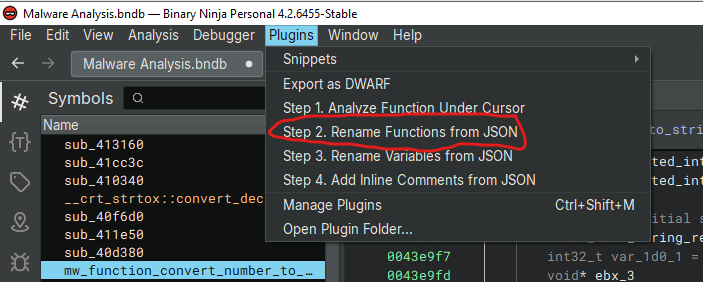
Inputting the AI Output in JSON and Applying It
Copy the JSON output from the AI (e.g., the example from the prompt) and paste it into the dialog’s text field. For instance, you might input:
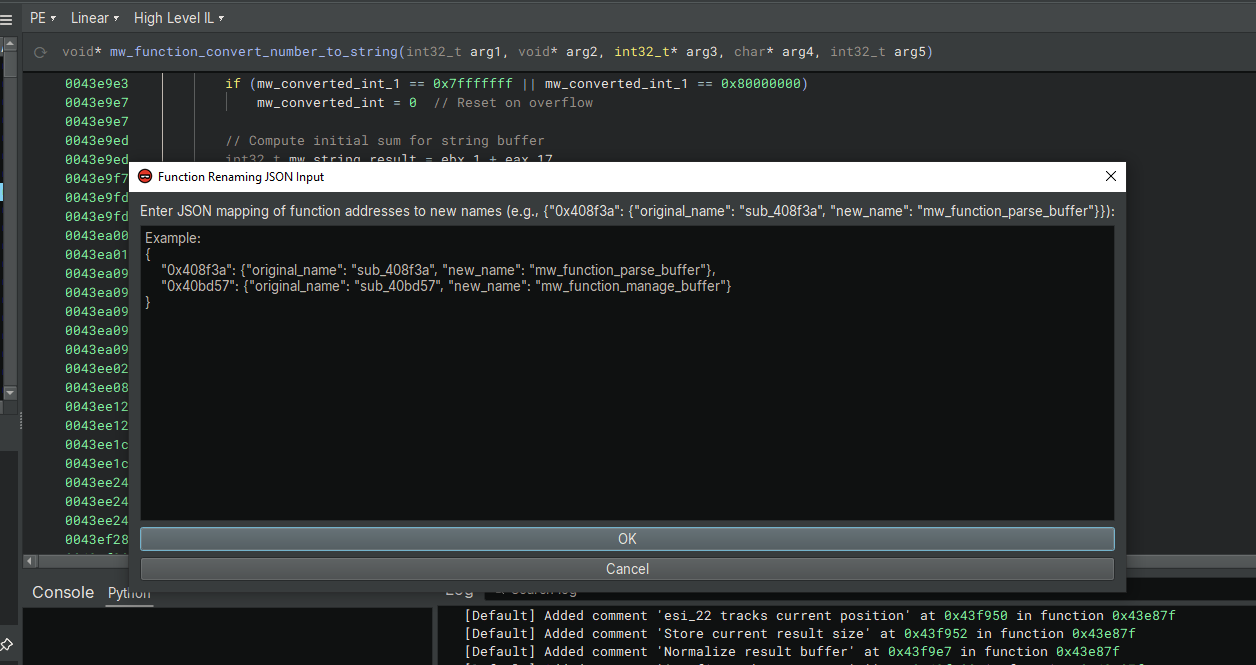
Click “OK” to apply the changes. The plugin will process the JSON, match the function addresses in the HLIL view, and rename them accordingly. In the Binary Ninja UI, you’ll see the functions updated as follows:
- sub_408f3a becomes mw_function_parse_buffer
- sub_40bd57 becomes mw_function_manage_buffer
- sub_42017b becomes mw_function_alloc_memory
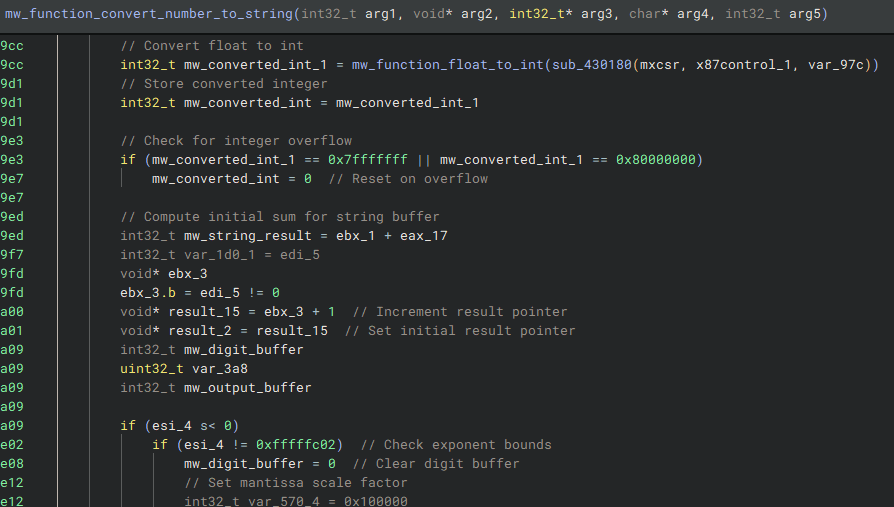
The plugin logs each rename in the Binary Ninja console (e.g., “Renamed ‘sub_408f3a’ at 0x408f3a to ‘mw_function_parse_buffer'”), providing a clear record of the changes.
Closing Thoughts
Using AI to analyze HLIL code and suggest function renames followed by a plugin to apply those changes transforms obscure names like sub_408f3a into descriptive ones like mw_function_parse_buffer. This approach enhances readability and speeds up malware analysis, leveraging Binary Ninja’s HLIL for a richer context. In my next post, I’ll explore further refinements to this process. Stay tuned for more!
 Cyber Security Architect | Red/Blue Teaming | Exploit/Malware Analysis