
I’ll guide you through the essential steps to pivot your connections, enabling seamless lateral movement for expanded networking opportunities.
In the following scenario, I successfully compromised both the wk2 and dev systems. Leveraging the pivot mechanism alongside the Proxify application, I redirected the traffic from attacker 2 through the CobaltStrike tunnel.

Here is below the beacon connectivities.

Below is the SOCK4a tunnel which is configured in WEB. With this confguration, All of our traffic that gets into the tunnel will exits on WEB 10.10.122.30

Configuring the SOCK4
Setting up the SOCK4 tunnel is very easy, You need to interact with the beacon on WEB and type the below command
[11/29 18:52:48] beacon> socks 1080
[11/29 18:52:48] [+] started SOCKS4a server on: 1080
Configuring the Proxify
As shown above that the tunnel is ready. What you need to make sure is the workstation can reach the IP of teamserver.
The first step is to setup the redirector which tell where the tunnel entry point. In this case we will redirect the traffic into 192.168.1.100 at port 1080
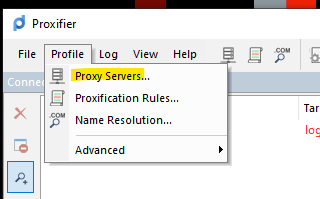
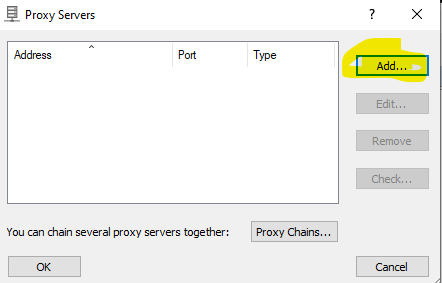
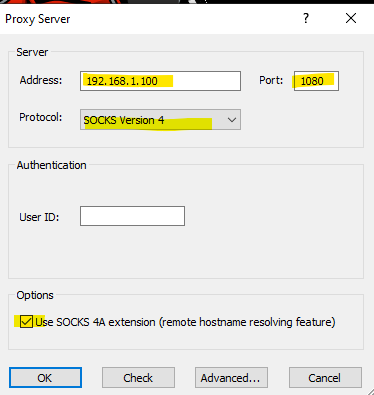
Setting Up Rules
In this segment, we will guide you on configuring Proxify to selectively redirect only a specific network range through the tunnel. It’s crucial to avoid overwhelming the network by pushing everything through the tunnel, which could lead to increased congestion and decreased efficiency. Therefore, we recommend a targeted approach to ensure that only the necessary network traffic is directed through the tunnel, optimizing overall network performance.
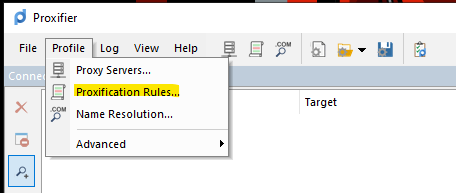
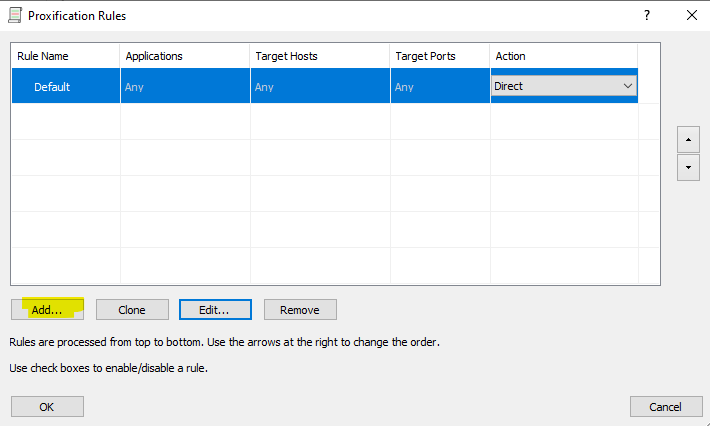
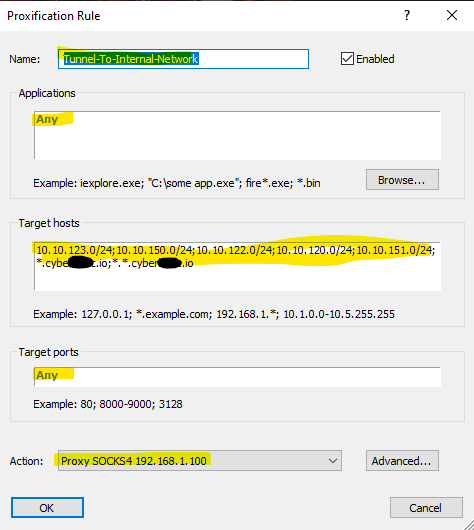
The redirectory is ready with the steps above.
Lets Try
In this scenario, I will be initiating a remote desktop connection to WK-1, marking it as my third target
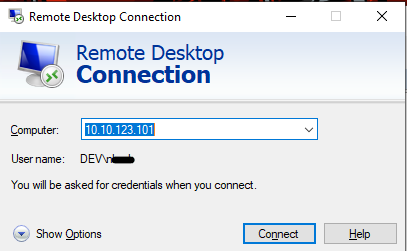
Upon establishing a connection, it becomes apparent that the application is being seamlessly proxied to our designated tunnel entry point.

In the image below, it’s evident that we can establish a tunnel to the internal network by seamlessly integrating the capabilities of Proxify and Cobaltstrike.

 Cyber Security Architect | Red/Blue Teaming | Exploit/Malware Analysis